How to Fill Product Fields Correctly on Uzanga (Step-by-Step Guide)
New to adding products on Uzanga? This guide explains product fields like stock, variants, bundles, pricing, units, and categories in a simple step-by-step format to help you manage your store more effectively.
Adding products properly on Uzanga is important because the information you enter affects how customers see your products, how stock is tracked, and how smoothly your store runs overall.
If you are new to Uzanga, some product fields may seem confusing at first, especially things like variants, units, bundles, and stock tracking. But once you understand what each field means, adding products becomes much faster and easier.
This guide walks you through the main product fields inside Uzanga and explains what each one does using simple examples.
Where to Add a Product
From your Uzanga admin dashboard:
- Go to Products
- Click Add Product
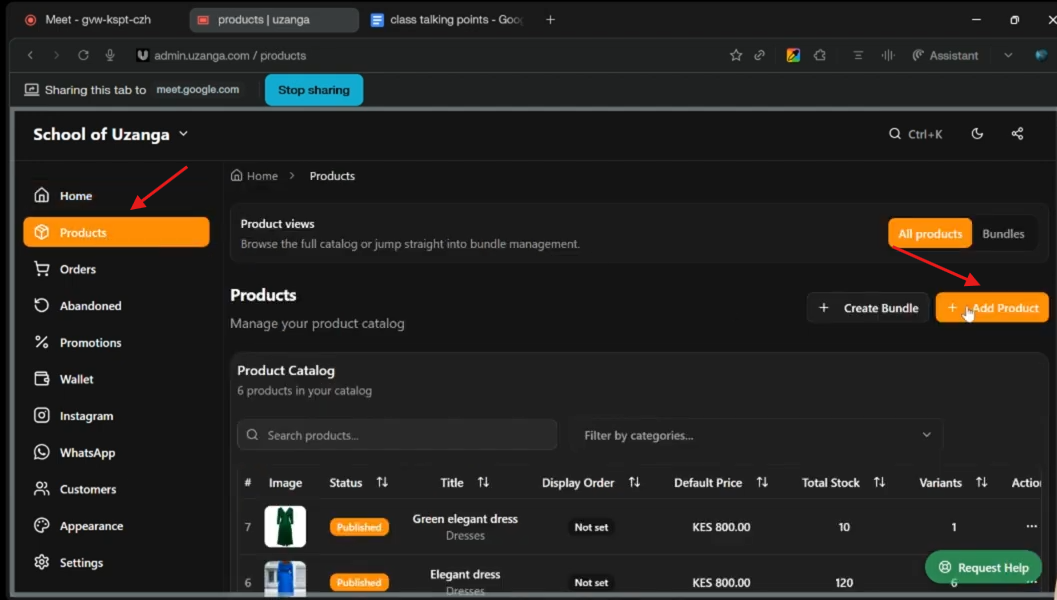
This opens the product form where you will fill in your product details.
Product Title and Description
The title and description are the main details your customers will see on your storefront.
The title should clearly describe the product you are selling.
For example:
- Nike Dunk Low
- Brown Leather Handbag
- Wireless Bluetooth Speaker
The description is where you add more details about the product such as:
- Size
- Color
- Condition
- Features
- Material
- Availability
For example:
This shoe is available in size 42, gray in color, and in good condition.
The more helpful your description is, the easier it becomes for customers to understand what they are buying.
Product Categories
Categories help organize your products properly inside your store.
For example, if you sell shoes, your categories might include:
- Sneakers
- Boots
- Sandals
- Nike
- Adidas
Using categories correctly helps customers browse your products more easily.
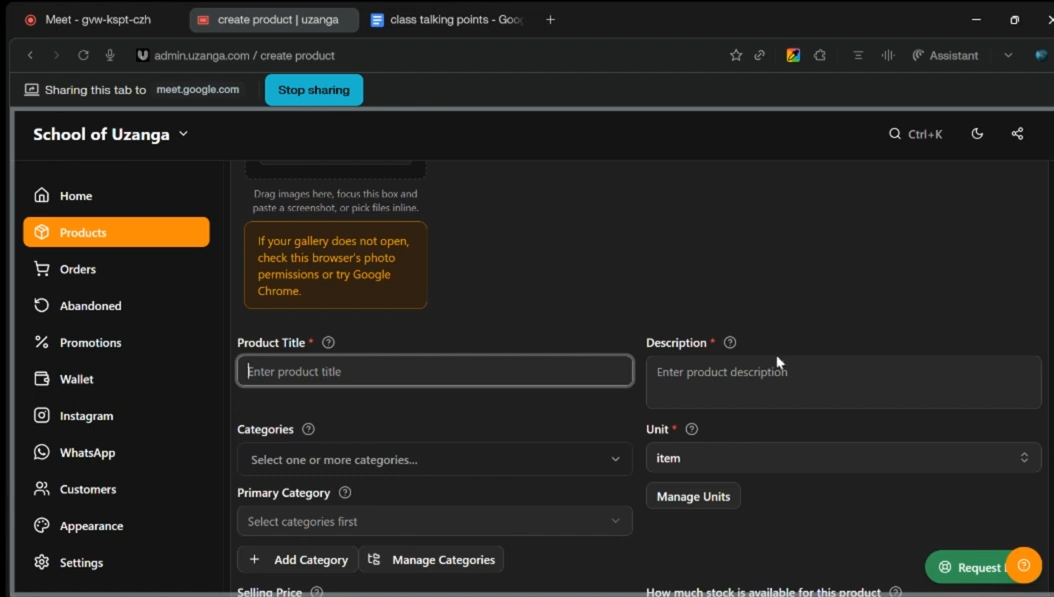
Understanding Units
The Unit field controls how stock quantities appear on your storefront.
For example:
- If you sell flowers, your unit might be Bunches
- If you sell soda, your unit might be Crates
- If you sell shoes, your unit might simply be Pairs
So instead of customers seeing:
10 left
They would see:
10 crates left10 bunches left10 pairs left
This small detail helps make your store feel more professional and specific to your products.
Selling Price
This is simply the current price of the product.
For example:
- Ksh 2,500
- Ksh 5,000
- Ksh 850
This is the amount customers will pay when purchasing the product.
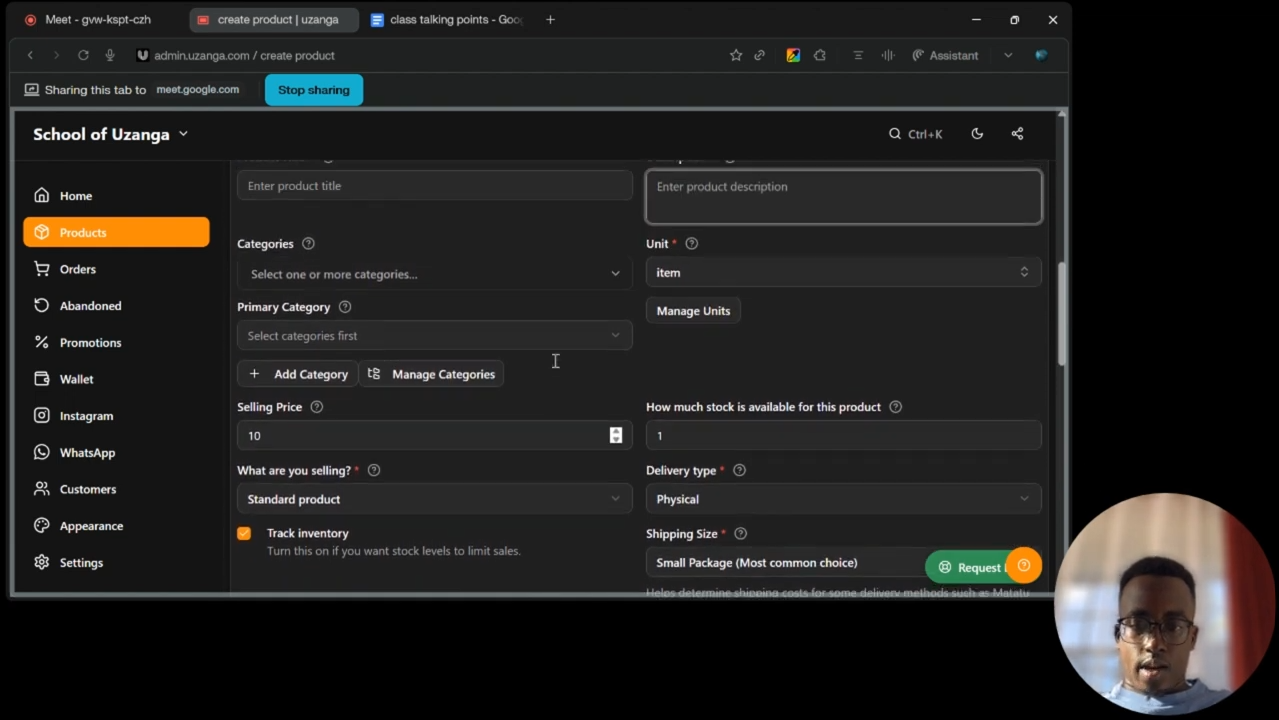
Stock Quantity
The stock field tells Uzanga how many units of the product you currently have available.
For example:
- 5 shoes available
- 20 handbags available
- 100 bottles available
If you do not track stock manually or you mainly work with pre-orders, you can leave this field empty.
Product vs Bundle
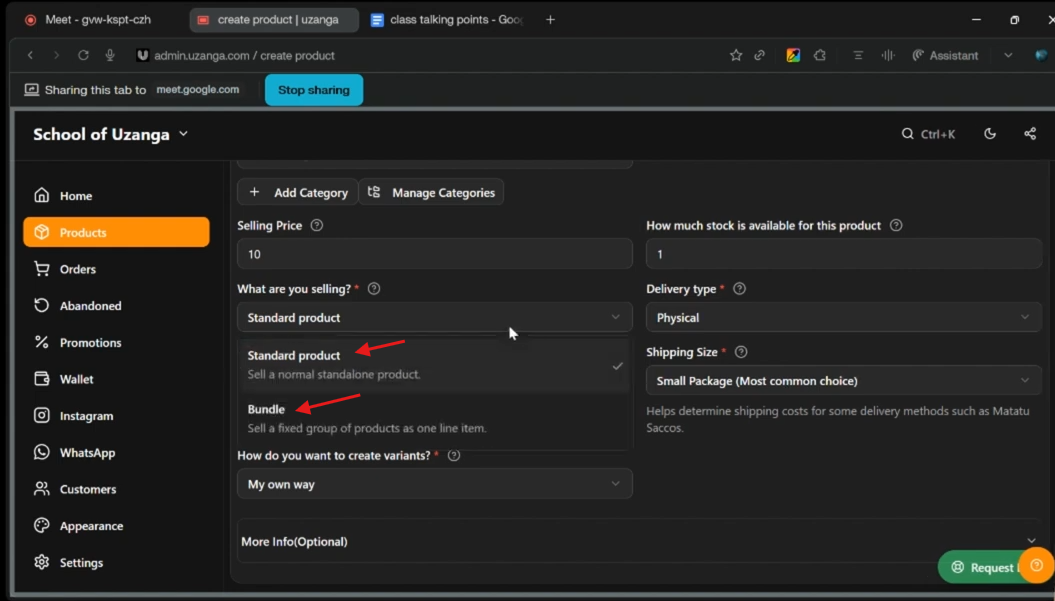
One important field asks:
What are you selling?
Uzanga gives you two options:
- Product
- Bundle
What is a Product?
A product is a single item being sold individually.
For example:
- One phone
- One shoe
- One handbag
What is a Bundle?
A bundle combines multiple products together and sells them as one package.
For example, if you run a phone shop, you could sell:
- Phone
- Screen protector
- Phone cover
Instead of selling them separately, you can combine them into one bundle.
Bundles are useful because they can increase your sales without adding completely new products to your store.
Customers also like bundles because they get related items together in one purchase.
Delivery Type: Physical vs Digital Products
Uzanga supports both physical and digital products.
Physical Products
Physical products are items that need delivery or shipping.
Examples:
- Clothes
- Shoes
- Furniture
- Electronics
Digital Products
Digital products are items customers receive online.
Examples:
- PDFs
- E-books
- Download links
- Digital templates
- Online resources
If you are selling downloadable content, select the digital option.
Track Inventory
The Track Inventory option controls what happens when stock runs out.
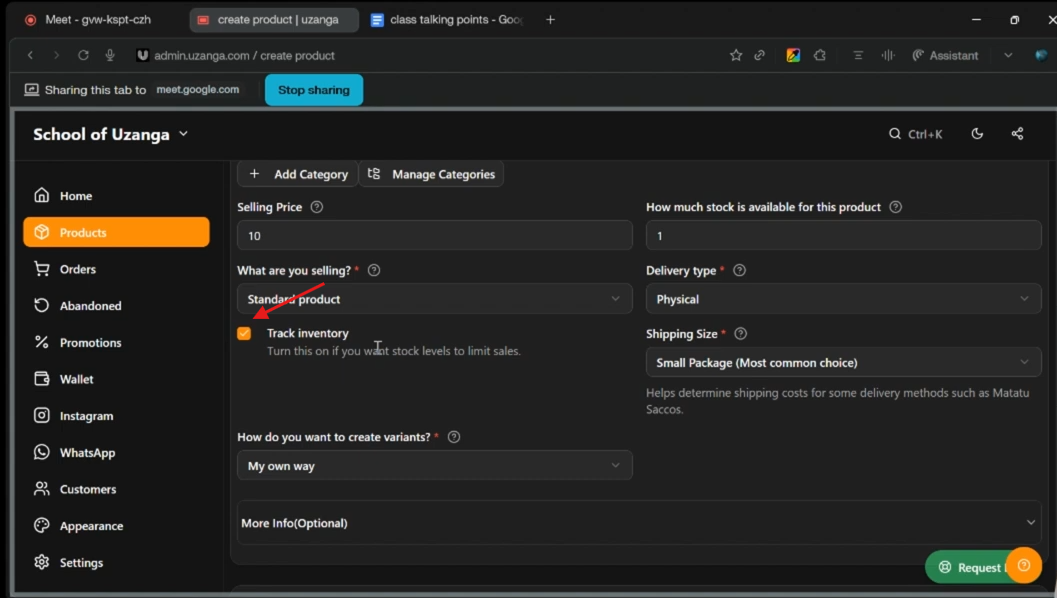
If inventory tracking is enabled:
- Uzanga can automatically stop customers from purchasing out-of-stock products
If disabled:
- Customers can continue placing orders even when stock reaches zero
This is useful for businesses that:
- accept pre-orders
- restock regularly
- sell made-to-order products
Shipping Size
The shipping size field is mainly used when working with transport or courier systems where shipping costs depend on package size.
For example:
- Transporting a wardrobe costs more than transporting a ruler
- Large products cost more to deliver than small products
Most businesses can simply leave this as:
Small Package
unless they are selling very large items.
Understanding Product Variants
Variants are different versions of the same product.
This is one of the most important sections to understand properly.
Examples of Variants
If you sell shoes, variants could include:
- Size 41
- Size 42
- Size 43
If you sell clothes, variants could include:
- Small
- Medium
- Large
Variants can also include colors such as:
- Red
- Green
- Black
Each variation is treated separately inside Uzanga.
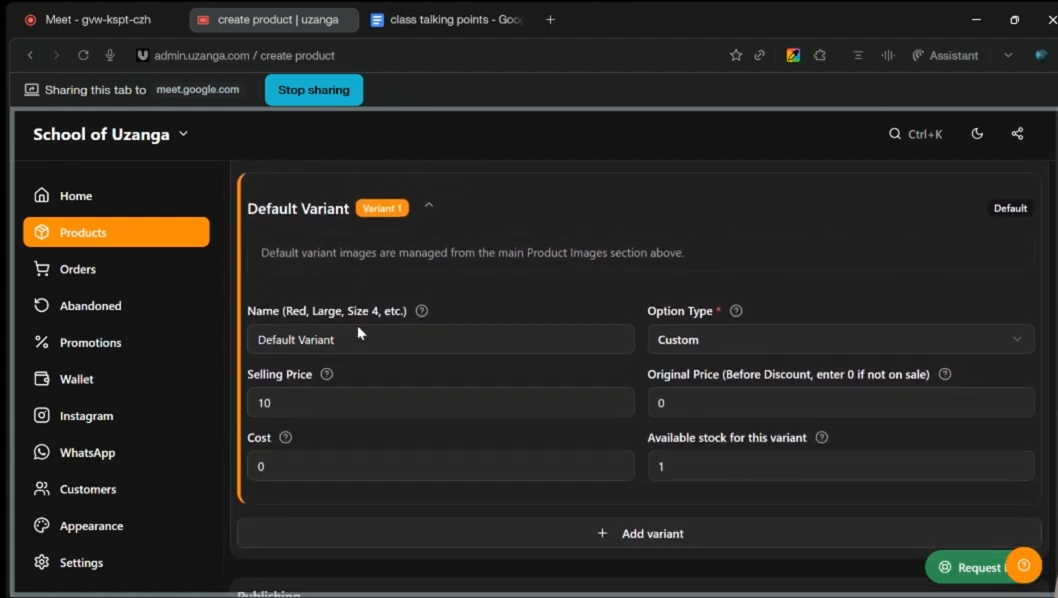
Variant Details
Inside the variant section, you can specify details for each variation individually.
For each variant, you can set:
- Variant name
- Stock quantity
- Selling price
- Original price
Original Price vs Selling Price
The original price helps display discounts or special offers.
For example:
- Original price: Ksh 5,000
- Selling price: Ksh 4,000
Your storefront can then display:
Was Ksh 5,000Now Ksh 4,000
This helps customers clearly see promotions and discounts.
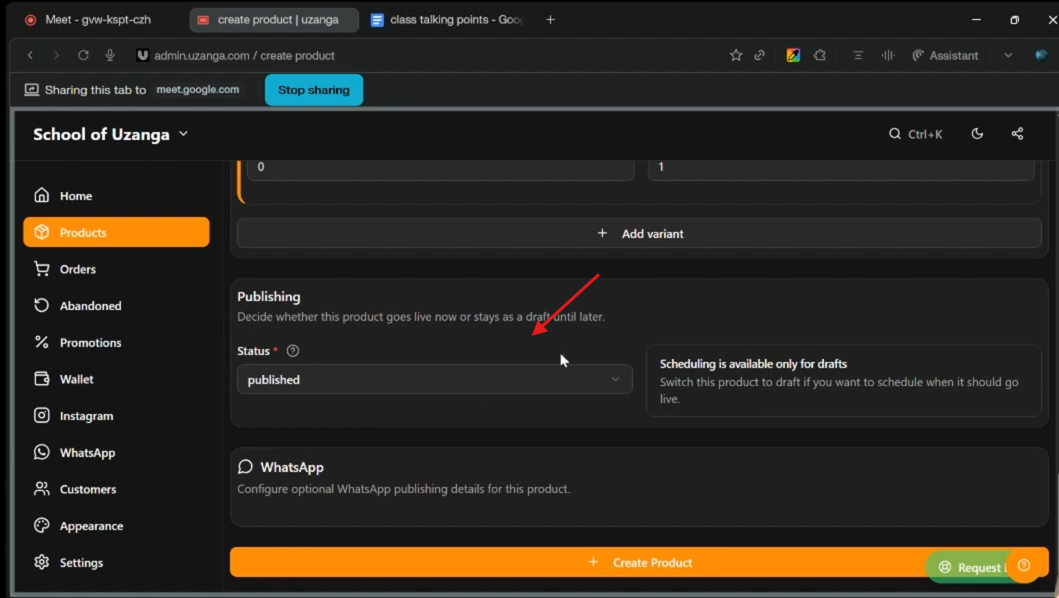
Publishing and Coming Soon Products
Uzanga also allows you to display products as:
Coming Soon
This is useful when:
- stock is arriving soon
- you want to create anticipation
- you want customers to know upcoming products are being added
Instead of hiding the product completely, customers can still see it listed as coming soon.
Helpful Tips When Adding Products
Here are a few tips that can make product creation faster and cleaner:
- Keep titles simple and clear
Avoid overly complicated names.
- Use detailed descriptions
Customers are more likely to buy when they understand the product properly.
- Organize products into categories
This improves navigation on your storefront.
- Use variants instead of duplicate products
Instead of creating separate products for every size or color, use variants to keep everything organized.
- Add original prices during promotions
This helps highlight discounts and offers more effectively.
Final Takeaway
Understanding product fields properly makes managing your Uzanga store much easier.
Once you know how titles, categories, units, stock, bundles, variants, and pricing work together, adding products becomes a quick and organized process instead of a confusing one.
The goal is not just to upload products, but to structure them properly so customers can browse easily, understand what they are buying, and complete purchases smoothly.